
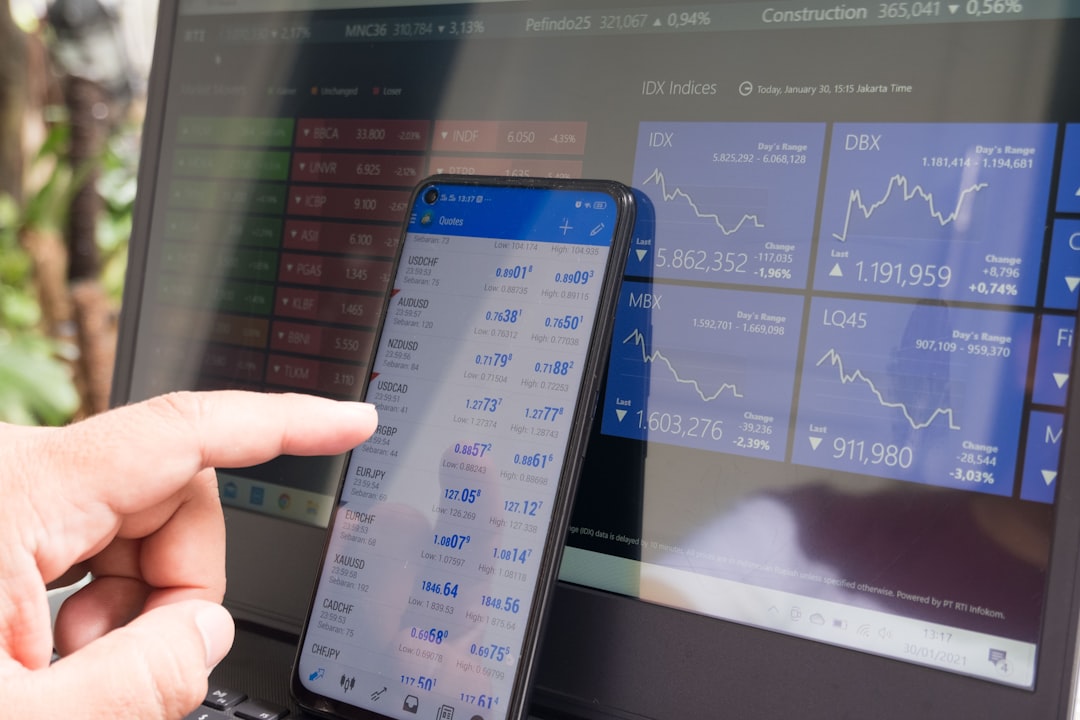
Smartphones provide convenient access to financial markets, but mobile applications depend on several technical components working together. Internet connectivity, Android permissions, application files, device resources, and security settings can all affect performance. When a problem appears, identifying its source is more useful than repeatedly restarting the application without understanding the cause. A properly maintained forex trading app android can provide a smooth mobile experience, but users should still understand common technical difficulties and the appropriate steps for addressing them.
Jump To
- Understanding the Source of an Android Trading Problem
- Internet Connection Interruptions
- Problems After an Application Update
- Login Screens That Keep Reloading
- Charts That Load Incorrectly
- Missing or Delayed Notifications
- Application Freezing
- Battery Optimization and Background Restrictions
- Storage-Related Performance Issues
- Security Verification and Device Changes
- When Reinstallation Makes Sense
- Recognizing Account-Specific Problems
- Building a Better Troubleshooting Routine
- Conclusion
Understanding the Source of an Android Trading Problem
A technical problem does not always originate inside the application. The device, operating system, network, or account environment may be responsible.
For example, a slow chart may result from an unstable connection, while an application that closes immediately may be affected by compatibility problems. Notifications may stop because Android has restricted background activity.
The most effective troubleshooting process begins by identifying the affected feature. Users should determine whether the issue involves login, charts, notifications, connectivity, navigation, or a specific account function.
Internet Connection Interruptions
A stable connection is fundamental to mobile applications that depend on continuously updated information. When the connection changes frequently, pages may load slowly or fail to refresh.
Users can begin by checking whether other online services are functioning normally. If they are also experiencing interruptions, the network is likely relevant to the problem.
Switching between Wi-Fi and mobile data can help isolate the cause. Users should also check whether Android’s data-saving settings have restricted the application.
Network congestion can produce intermittent problems even when the device shows a connection symbol. A strong connection indicator does not always guarantee consistent data transmission.
Problems After an Application Update
Updates are designed to improve security, compatibility, and functionality, but users may occasionally experience unexpected behavior after installing a new version.
If a problem begins immediately after an update, users should first restart the device. This allows updated system components and application processes to load correctly.
Checking Android system updates may also be useful. Applications and operating systems are closely connected, and compatibility can depend on both being reasonably current.
If a problem continues after updating, users should review official support information for known technical issues before making major changes to the device.
Login Screens That Keep Reloading
A login screen that repeatedly refreshes may be caused by an unstable connection, expired session information, application cache issues, or authentication services.
Users should first verify that the device has a stable connection. If the network is functioning, closing the application completely and reopening it can refresh the session.
Clearing temporary cache data may help when local application information has become inconsistent. However, users should avoid deleting stored application data unless they understand the consequences and have the necessary account credentials available.
Security verification should also be completed through official channels. Repeated authentication failures should not be treated as an invitation to disable security features.
Charts That Load Incorrectly
Charts require the application to process both market information and visual settings. Problems may include blank charts, incomplete historical views, unusual scaling, or indicators that fail to appear.
Users can test whether the issue affects every instrument or only a particular market. If only one chart is affected, the problem may be associated with that specific data view.
Reducing unnecessary indicators can also reduce interface complexity. Restarting the chart or application may refresh the visual session.
Screen orientation can sometimes influence how chart components are displayed. Switching orientation and returning to the preferred view may restore the layout.
Missing or Delayed Notifications
Android gives users extensive control over notifications. While this provides flexibility, it can also prevent important application alerts from appearing.
Users should review notification permissions and make sure alerts have not been disabled. They should also examine battery optimization settings.
Some Android devices place applications into restricted background states when they are not frequently opened. These restrictions can interfere with timely notifications.
Users should also check whether a particular notification category has been disabled rather than turning all notifications on or off without reviewing individual settings.
Application Freezing
An application that stops responding can be affected by temporary memory pressure, background processes, software conflicts, or corrupted temporary files.
Closing unused applications may release device resources. Restarting the smartphone can also clear temporary processes.
If freezing happens repeatedly at the same point, users should document the sequence. For example, they can note whether the problem occurs after opening a chart, switching screens, or accessing account information.
This detail can help technical support reproduce the problem and determine whether it is application-specific.
Battery Optimization and Background Restrictions
Battery management is useful for extending device runtime, but aggressive restrictions can affect applications that need background communication.
Users experiencing missing alerts or delayed updates should review the application’s battery permissions. If Android provides options for unrestricted or optimized background activity, users should understand the difference before changing them.
Device manufacturers may add their own power-management systems. These settings can operate separately from standard Android controls.
A careful review of both system and manufacturer-specific settings can therefore be important when background functionality is inconsistent.
Storage-Related Performance Issues
Mobile applications require working space for temporary files and system operations. When a device is heavily occupied, general performance may decline.
Users can review available storage and remove unnecessary content. Unused applications, duplicate media, and old downloads can often be cleared without affecting important account information.
It is also useful to keep personal and application data organized. Regular maintenance reduces the possibility that storage limitations will contribute to performance problems.
Security Verification and Device Changes
Changing smartphones, reinstalling an application, or modifying security settings may trigger additional verification.
This is normal for systems designed to protect accounts from unauthorized access. Users should complete requested verification through legitimate application or support channels.
If access remains unavailable after completing the required process, contacting official support is safer than repeatedly changing security settings.
Users should never provide authentication codes or passwords to another person claiming to offer technical assistance.
When Reinstallation Makes Sense
Reinstallation can resolve corrupted application files, but it should not always be the first troubleshooting step.
Before uninstalling, users should ensure they know their legitimate login credentials and understand any device-specific security requirements. They should also confirm that important preferences or locally stored information will not be lost.
After reinstalling, the application should be obtained from the appropriate official distribution channel. Users should avoid unofficial application packages because their authenticity and security cannot always be verified.
Recognizing Account-Specific Problems
Some issues may appear to be application failures but actually involve account configuration. A user may experience restricted access, missing features, or verification requests that do not affect other users.
These situations generally require account-specific assistance. Repeatedly changing device settings is unlikely to resolve an issue that exists at the account level.
Providing support staff with accurate information about the problem, device, application version, and relevant error messages can make investigation more efficient.
Building a Better Troubleshooting Routine
A systematic approach is more effective than changing many settings simultaneously. Users should begin with simple checks: internet connectivity, application status, device restart, available updates, permissions, and storage.
After each change, the application should be tested again. This makes it easier to identify which adjustment affected the problem.
Keeping notes about recurring issues can also reveal patterns. If difficulties occur only on a particular network, after specific updates, or during particular device conditions, that information may be valuable.
Conclusion
Android trading application problems can originate from many different sources, including networks, permissions, battery restrictions, outdated software, storage limitations, or temporary application errors. Understanding these categories makes troubleshooting more structured and less disruptive.
Regular device maintenance, careful permission management, stable connectivity, current software, and secure account practices can support dependable application performance. When technical problems involve account access or continue despite standard troubleshooting, official support should be used to investigate the issue safely and accurately.
Quick Summary
- Smartphones require stable internet connectivity for optimal performance of mobile applications that access financial markets.
- Technical issues may arise from various sources, including the device, operating system, network, or account environment, rather than solely from the application itself.
- After an application update, users should restart their device to ensure updated components and processes load correctly if problems arise right away.
- A login screen that keeps refreshing may indicate issues such as an unstable connection, expired session information, or cache problems.
- Notification delays on Android can result from restricted background activity or disabled alert permissions, which users should review to ensure timely updates.
- Application freezing can be caused by temporary memory pressure or software conflicts, and users can troubleshoot by documenting the specific actions leading to the freeze.